-
How To make eBay label print properly on Zebra ZD420 from Ubuntu with GIMP
Published: Tuesday, February 17th 2026 01:47:02 AM - EST
Updated: Wednesday, March 4th 2026 10:27:50 AM - EST
Written by: jbick
Category: ELECTRONICS
Discussing how to make a 4 by 6 eBay shipping label work with Zebra ZD420 via Ubuntu and GIMP. I purchased my own Zebra ZD420 off eBay so that I can make labels on the fly, considering my experience with the ZD420s over the years.
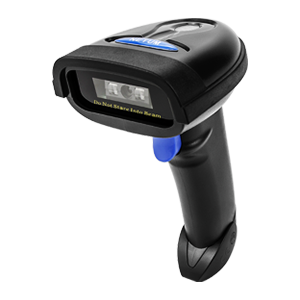
Buy Featured Items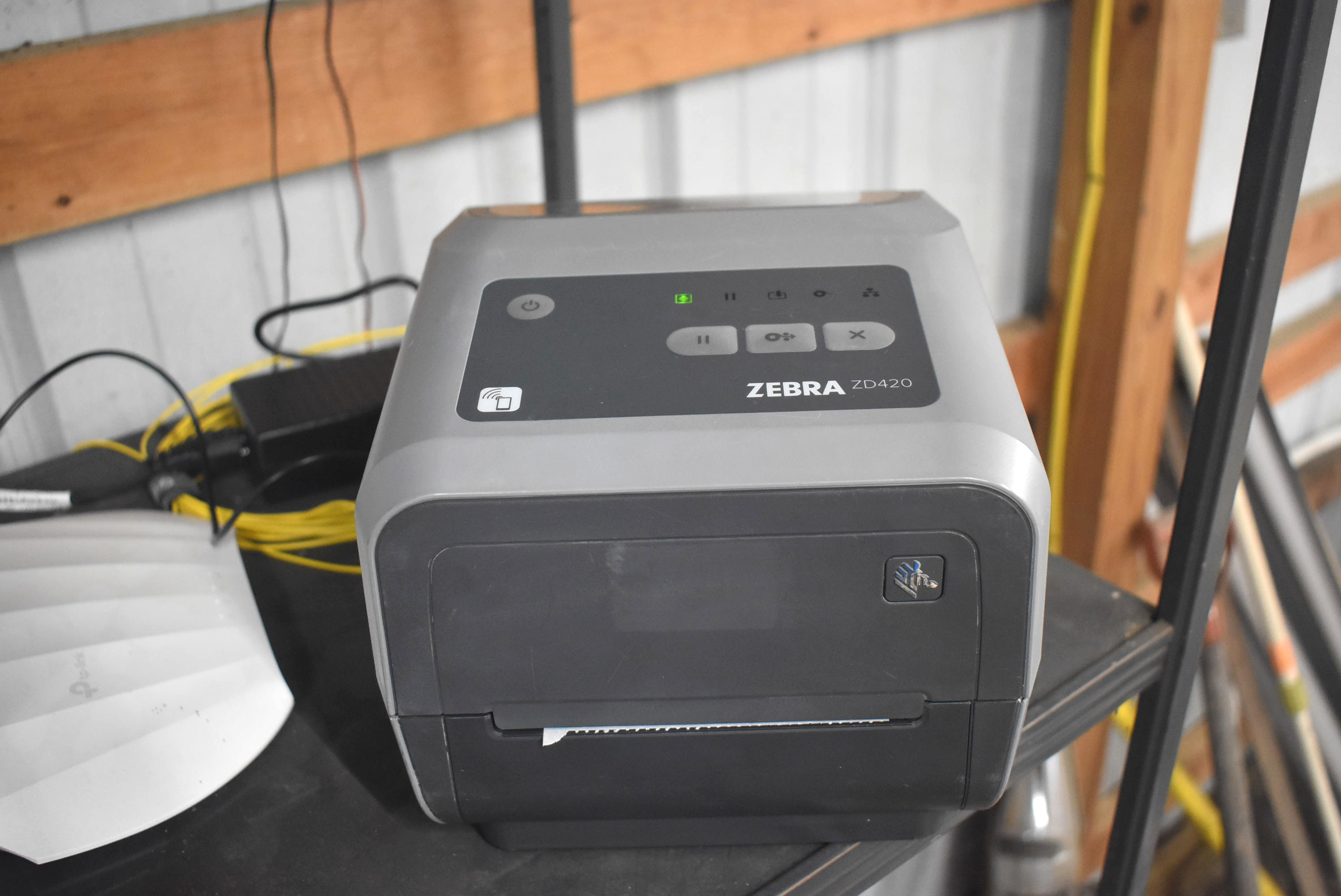
The Zebra ZD420 has proven itself to me over the years to be basically bullet proof. I have seen them in several production environments like the automotive industry. They have seemed to just keep working. I figured one of these printers would be worth its weight in gold to purchase used so that I can print my own labels from home.
I have been selling on eBay since 2011 and in the past I simply used a inkjet printer and just cut the 4" by 6" label out of a standard office sheet. This would require me to tape the label onto the package, which is time consuming and a waste of space.
Having never been on the configuring end of one of these printers, I figured they would basically be plug and play. You plug the printer in and just hit the print button. Which is how it went but getting the correct resolution was another story.
It would turn out that these printers are very picky on how the DPI meta data is set. If the metadata is not set correctly the label will print out pix-elated. eBay actually serves USPS shipping labels in the correct DPI however the size of the label document has to be reduced to 4" by 6" as opposed to a standard office document size.
Why eBay serves the shipping labels in a format other than 4" by 6" is odd however it can be cropped down to the correct size. I figured just crop it, save it as a PNG or PDF and the correct print size would appear.
Utilizing GIMP to get the correct format
GIMP is a free image document editing utility. I have used it for years, being a fan of Open Source stuff. While it certainly does not have as many tools as the Adobe sweet has, it has served me right over the years. You can't beat the price of FREE.
The same process could likely be utilized on Adobe Photoshop for example or probably any editing software suite app. GIMP is my tool of choice as it works on both Linux and Windows. I personally have not one Windows device since 2020.
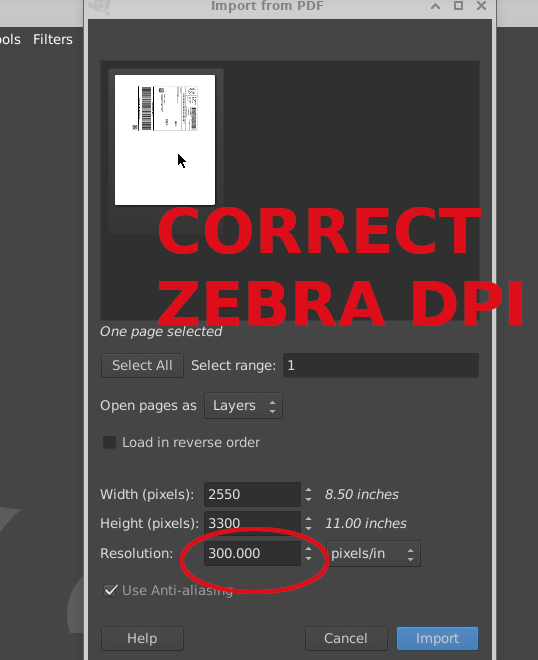
- Purchase and Download the .PDF shipping label from eBay.
- Open the label with GIMP from any flavor of Linux or Windows.
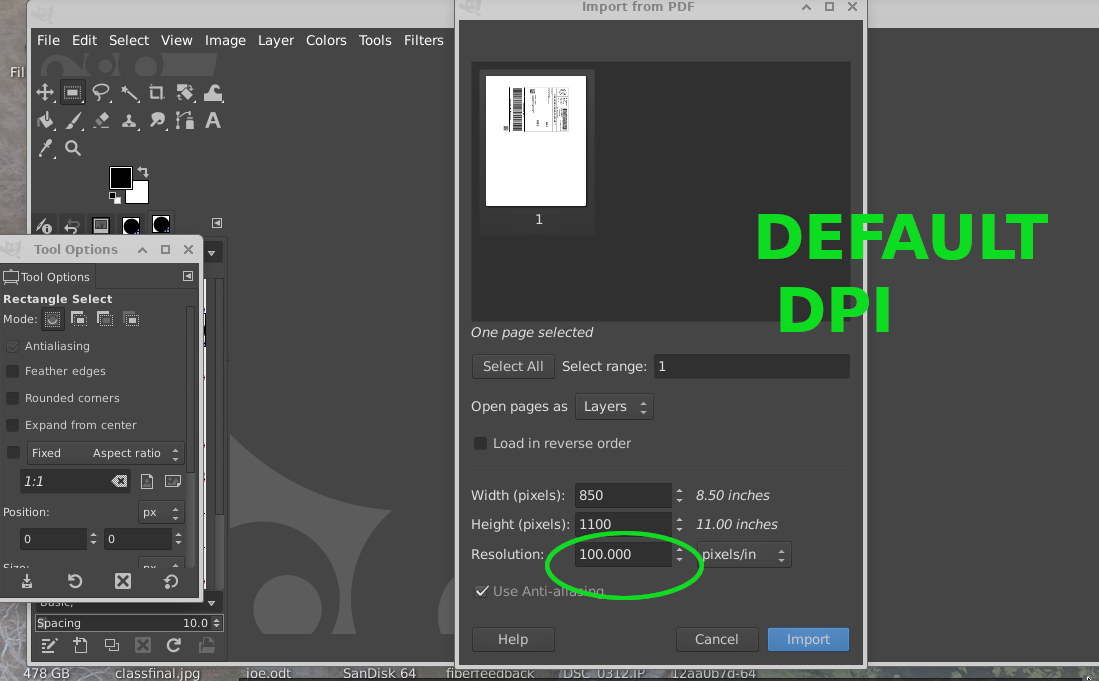
- Upon opening the .PDF label a dialouge box will appear allowing you to set the correct DPI/Resolution. Set the resolution to 300 PX/IN as pictured above. It is critical to set the correct DPI for The Zebra ZD420.
- Transform the document by rotating 90 degrees 3 times to get the correct orientation, as shown in the video below.
- Use the rectangular tool to crop the document to the size of the label. The label is provided in 4 by 6 but we need to chop off the excess document, as shown in the video below.
- Use crop image to selection.
Related ELECTRONICS Posts
-
Pages
Home Page
About BP
Submit Review
Now on The GRR
Listen Now: BetterPart's own Internet Radio station is Hillsdale's Good Rock Radio The GRR!
-
 Better Parts
 -