-
Getting My Zebra ZD420 Setup over Network via Raspberry PI-3
Published: Tuesday, November 11th 2025 01:19:22 PM - EST
Updated: Thursday, November 20th 2025 01:52:30 PM - EST
Written by: jbick
Category: ELECTRONICS
Discussing how I setup my Zebra ZD420 over a network, why I did it and how to overcome some quirks in cups network printing.
Buy Featured Items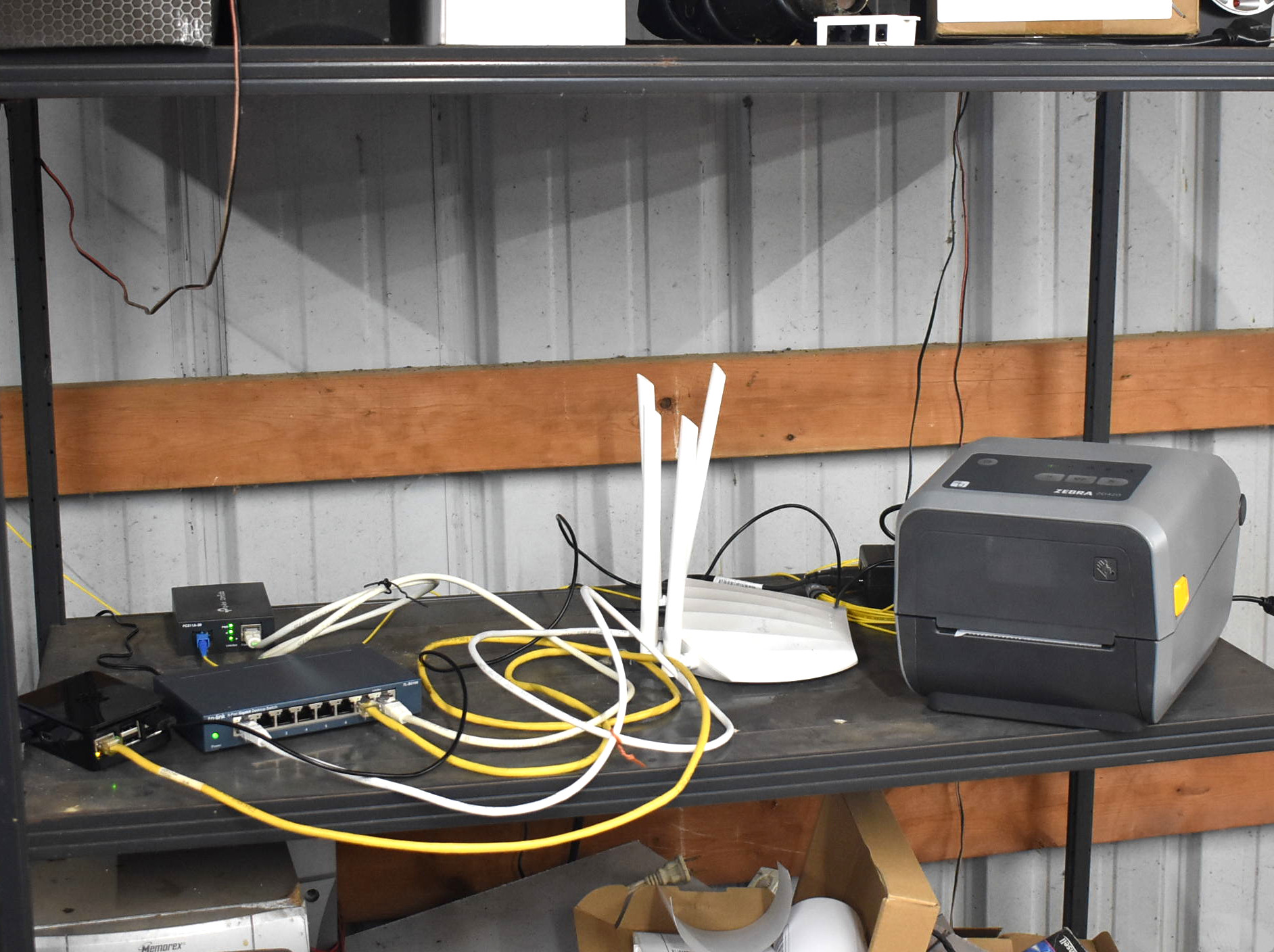
Having been in the shipping business for a large part of my life including being a seller on eBay and right here on betterparts.biz, I figured it was past time to get a 4 inch by 6 inch label machine working within my network. Although I do not ship as many items anymore, it still seems useful to have a thermal transfer printer available on my network in case things pick up or I have to return an online item.
Every manufacturing facility I have worked at over the years uses the Zebra thermal printers. Some with ribbons and some without. Over my time I have noticed that the printers are very durable seemingly holding up for years and low maintenance.
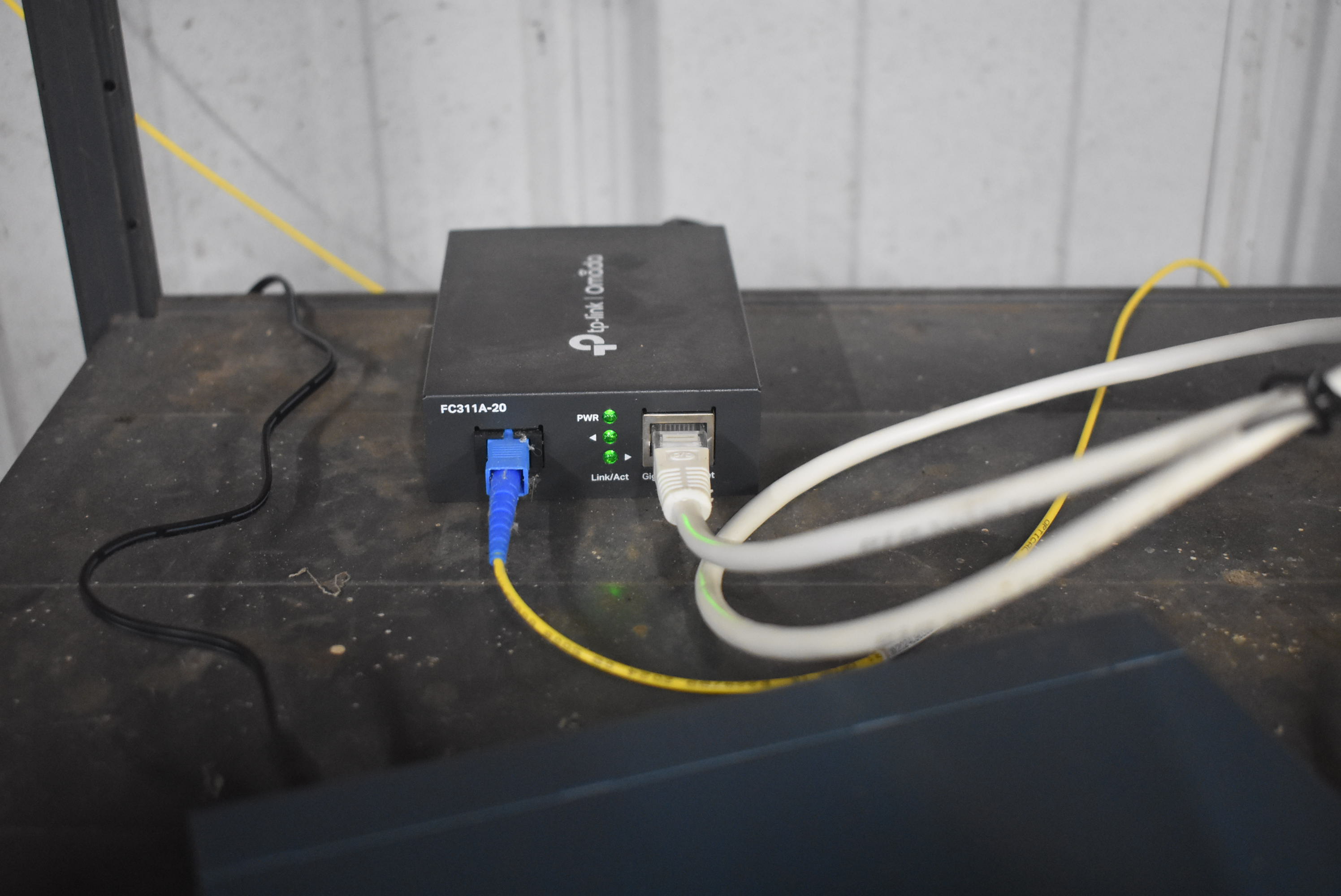
After having installed fiber optic networking into the garage shop facility I knew I could install a printer right out in the garage and be able to print to it from my work station in the house.
Considering my TP-LINK ER605 router is very reliable and I have setup multiple VLANs within my network: house, server room, studio, and garage shop facility, all that was needed was to add a port switch into the existing setup so we can have the raspberry pi and the wireless access point. Plug in a TP-LINK SG108 Giving the shop 8 ports of Ethernet connectivity.
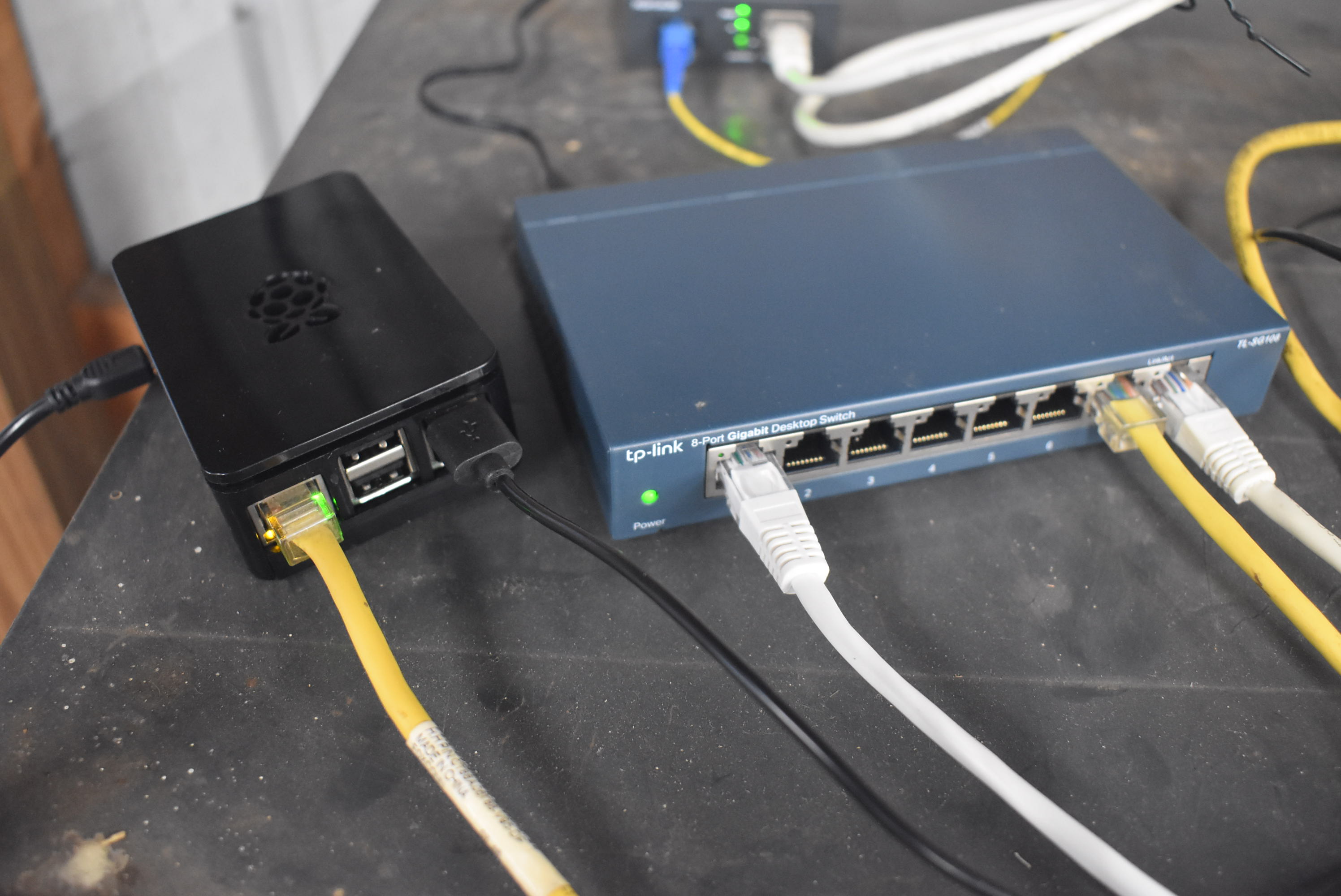
Eventually I would add a work station in the garage and at which point could print from either work station depending on needs. The shop is around 200 foot away from the house so it's a walk to go pick up my printed label however it's better than cluttering up the house any more.
I decided to purchase a Zebra ZD420 which does not have a built in print server per say at-least not one that ties it into a Local Area Network. This refurbished printer was one of the most affordable out there on eBay and I have seen the very model several times over the years. While it does not have a print server and requires a ribbon cartridge, I decided to go with it.
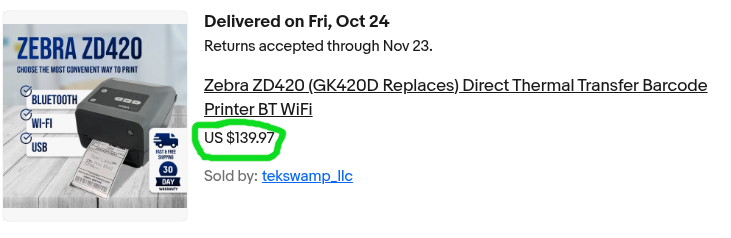
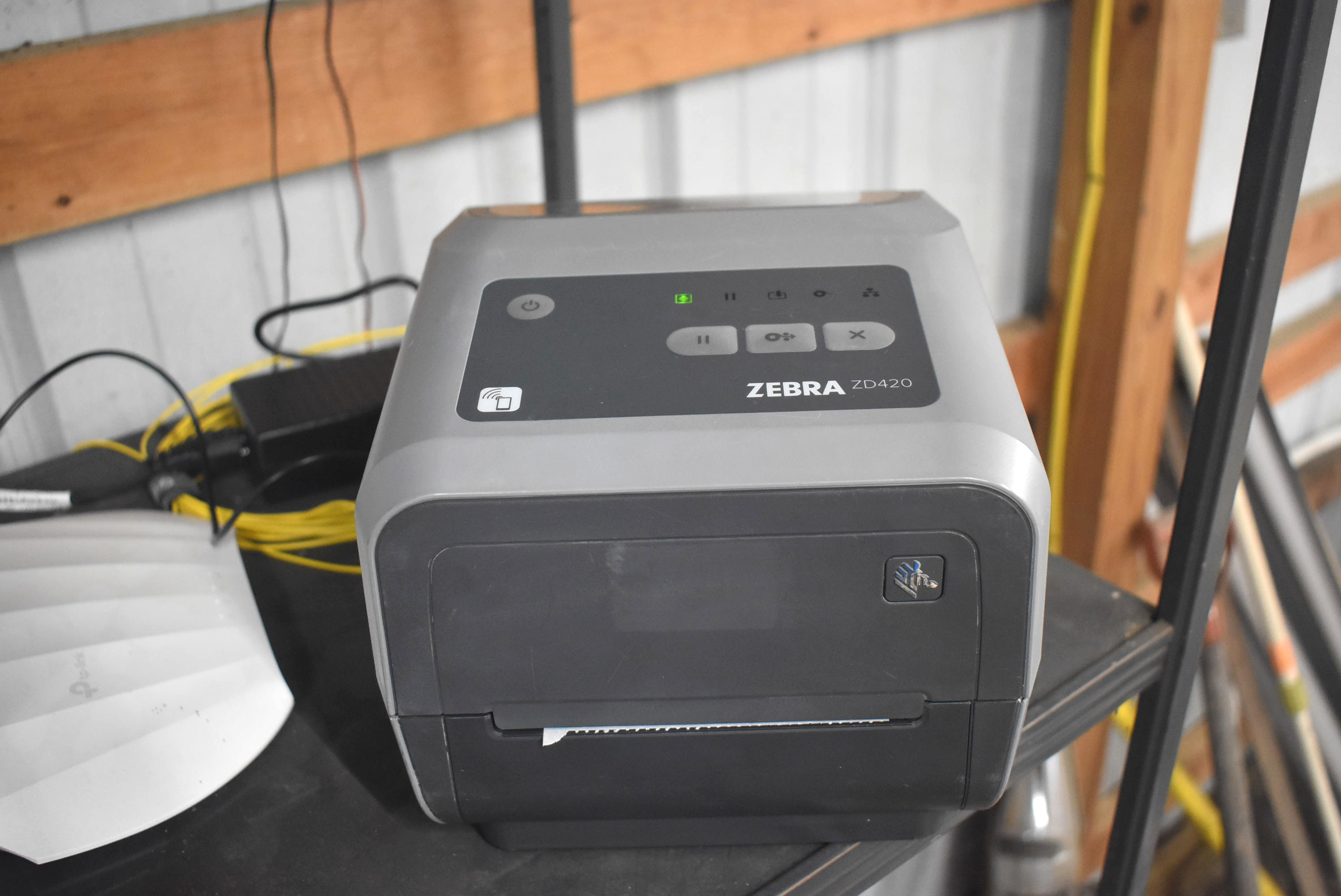
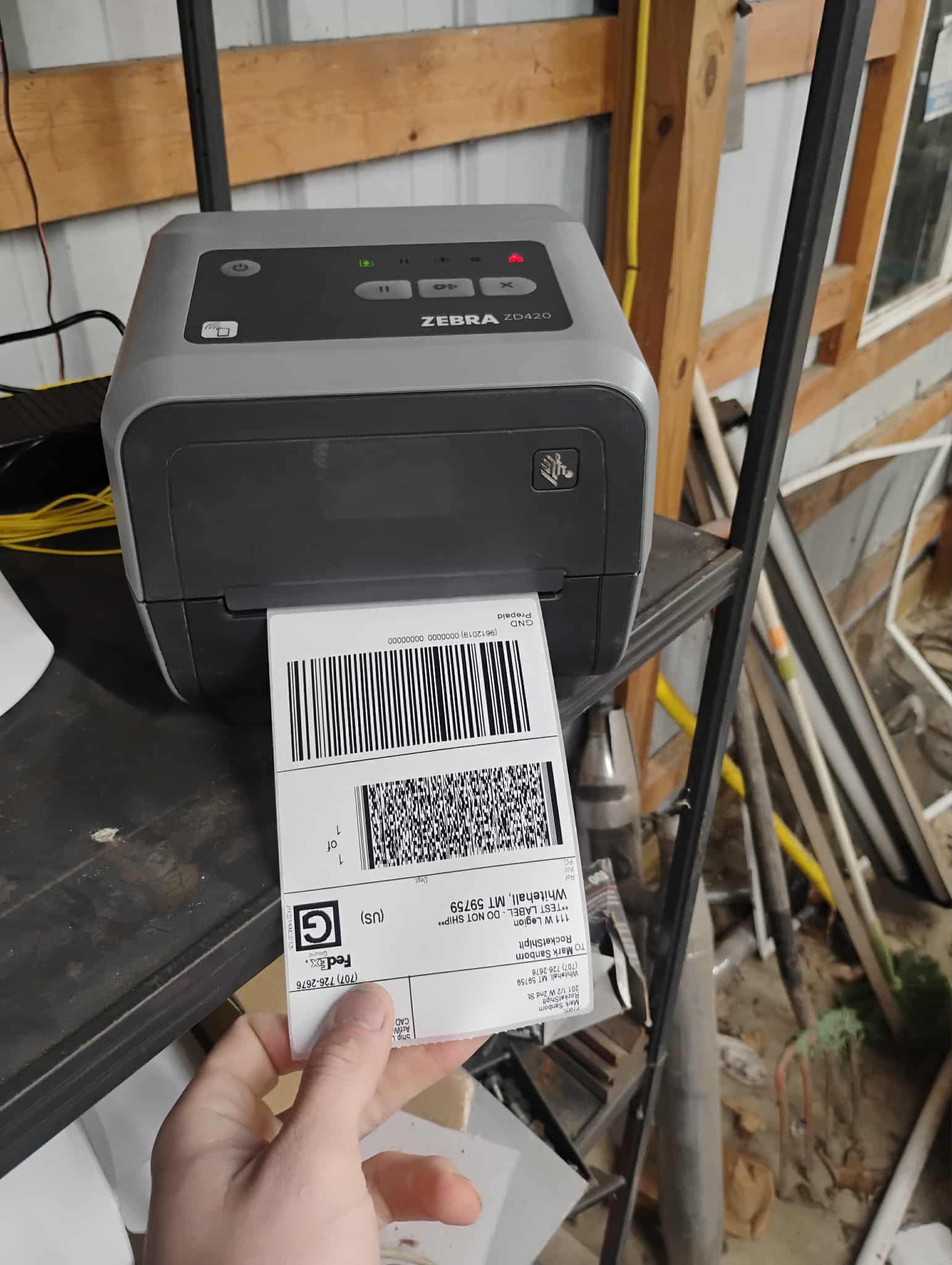
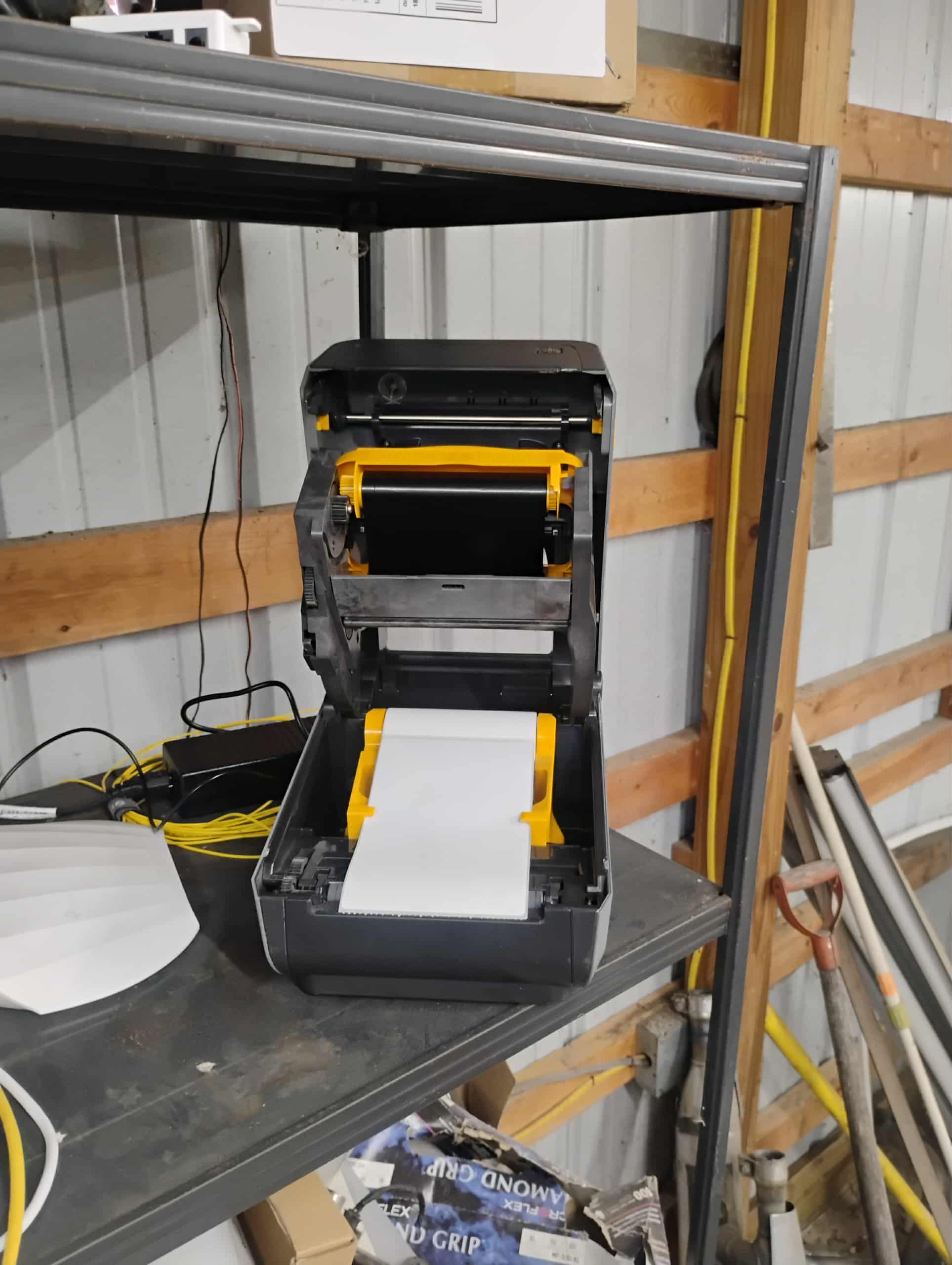
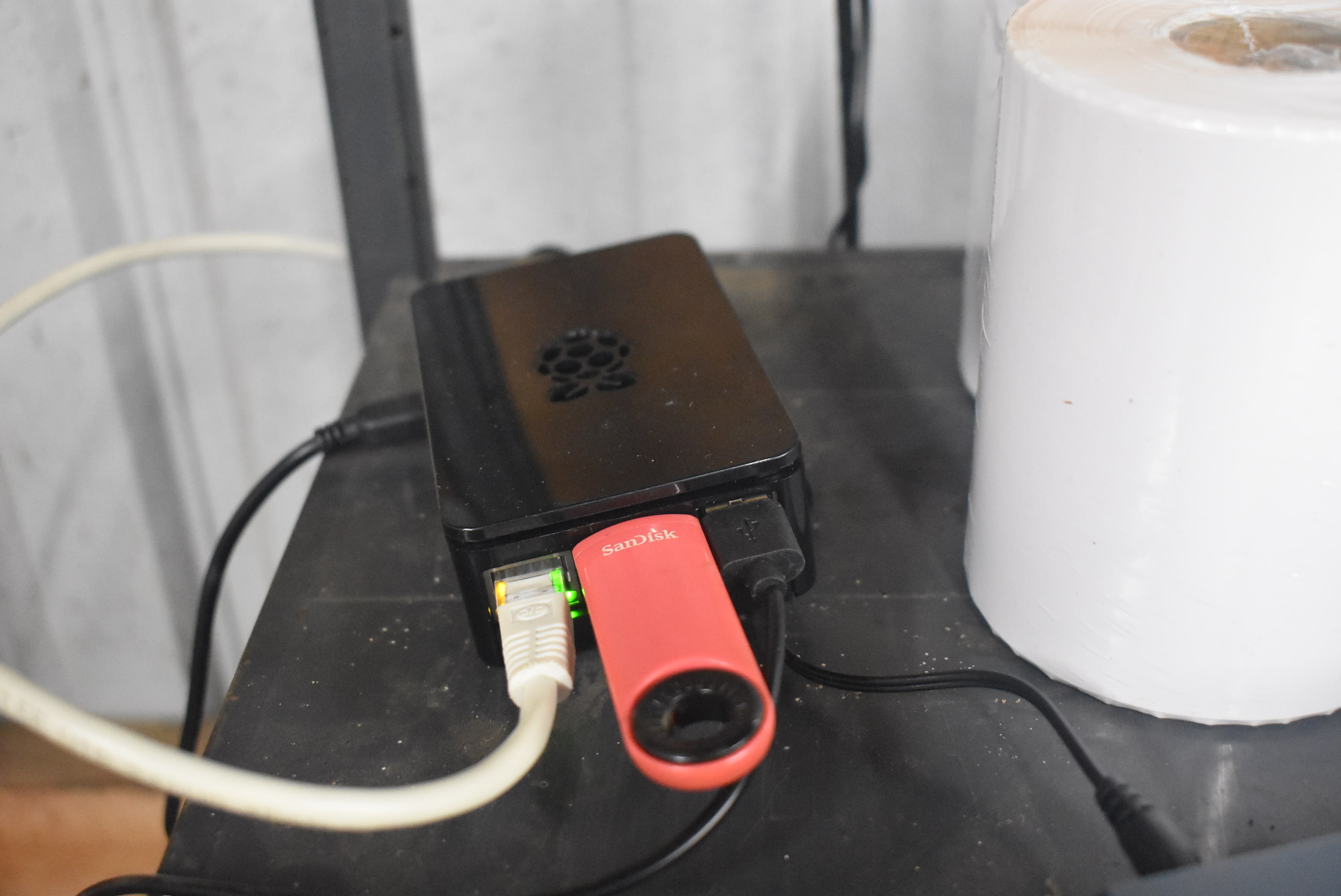
Considering it is without a LAN print server built in I decided to just go with an older raspberry PI 3 to serve as a print server, which I also purchased off eBay.
Why I Chose Raspberry PI 3
I chose the raspberry pi due to it's affordability and customize-ability. I also chose it due to it's size and quality. I have seen some cheesy print servers over the years. Had I went with a traditional print server I would be unable to customize it while the raspberry pi has a flavor of Debian.
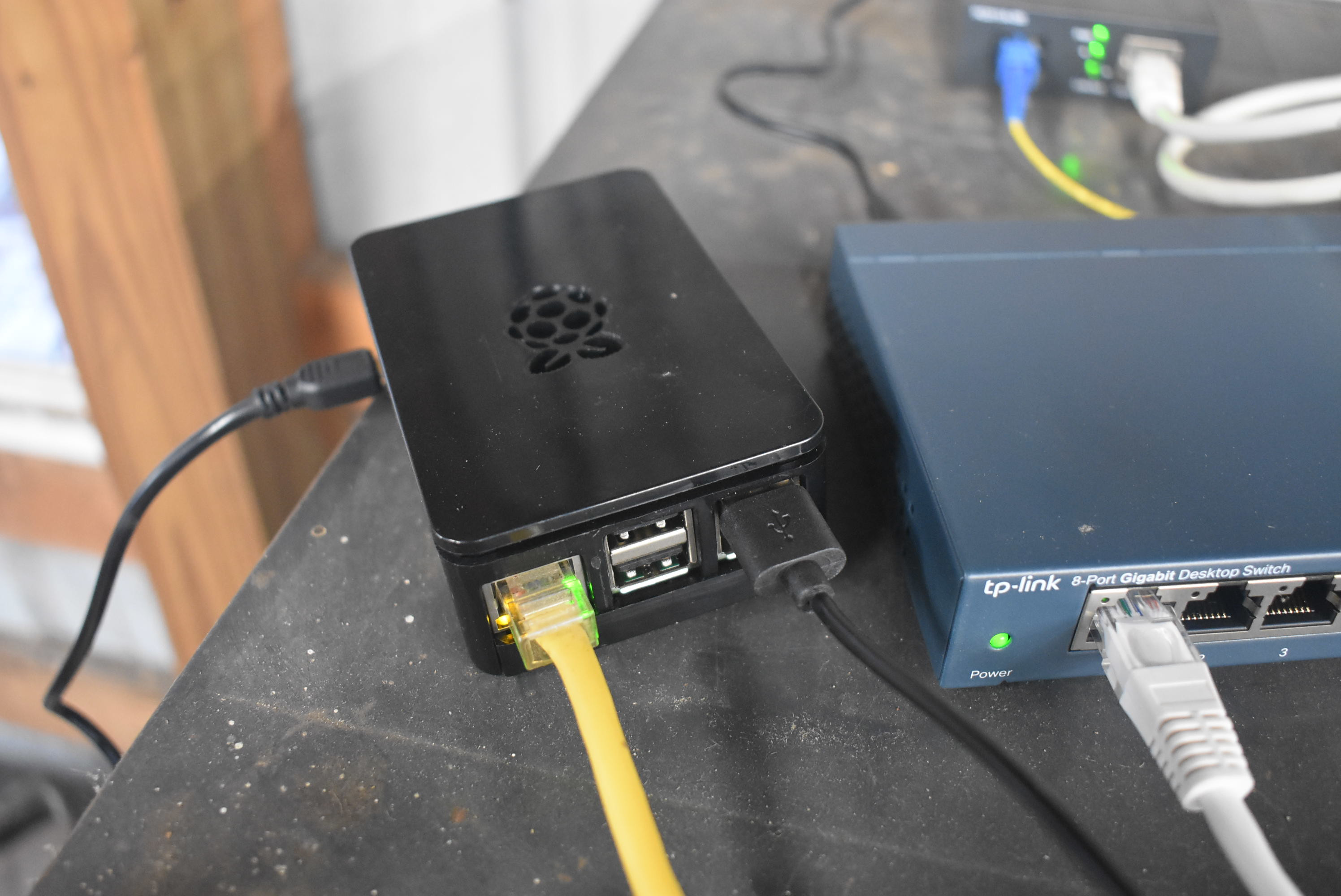
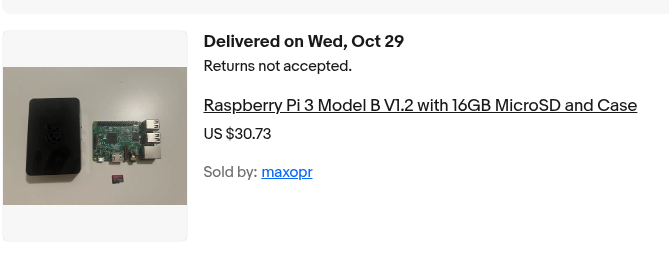
The default raspberry pi operating system, PI-OS is built off of Debian which is very similar to Ubuntu. I have used Ubuntu most of my life, especially in server environments. Debian is a very stable OS and it saw the printer right away with the correct drivers. I did not even have to download drivers for the Zebra ZD420.
Implementing a print server out of Raspberry Pi 3
The default print manager on Debian based operating systems is CUPS or Commonly Used Print Service. CUPS has all sorts of capabilities including sharing a printer, IPP, and Bonjour. I have used CUPS for years for regular printing from any Linux computer, including when I used to print out labels on regular printer paper and cut them out then tape onto whatever package I am shipping.
CUPS is capable of IPP or Internet Printing Protocol and requires minimal configuration to share or use a printer over a network. Correct implementation is critical however to get the Zebra ZD420 to work over a network, correctly.
I was hoping to actually just install CUPS and the Zebra ZPL driver then use IPP to print from my remote client but unfortunately it wasn't that simple. I ended up wasting dozens of 4" by 6" labels trying to get the correct format: a full 4 by 6 label. The correct implementation is critical for printing the correct format.
Although I could get it to work with manually adding my remote printer via the CUPS prompt it would not print out the correct size label. It was always scaled down and faded. With any driver in CUPS other than the automatic discovery on the remote client, I could not get the labels to print correctly over network IP.
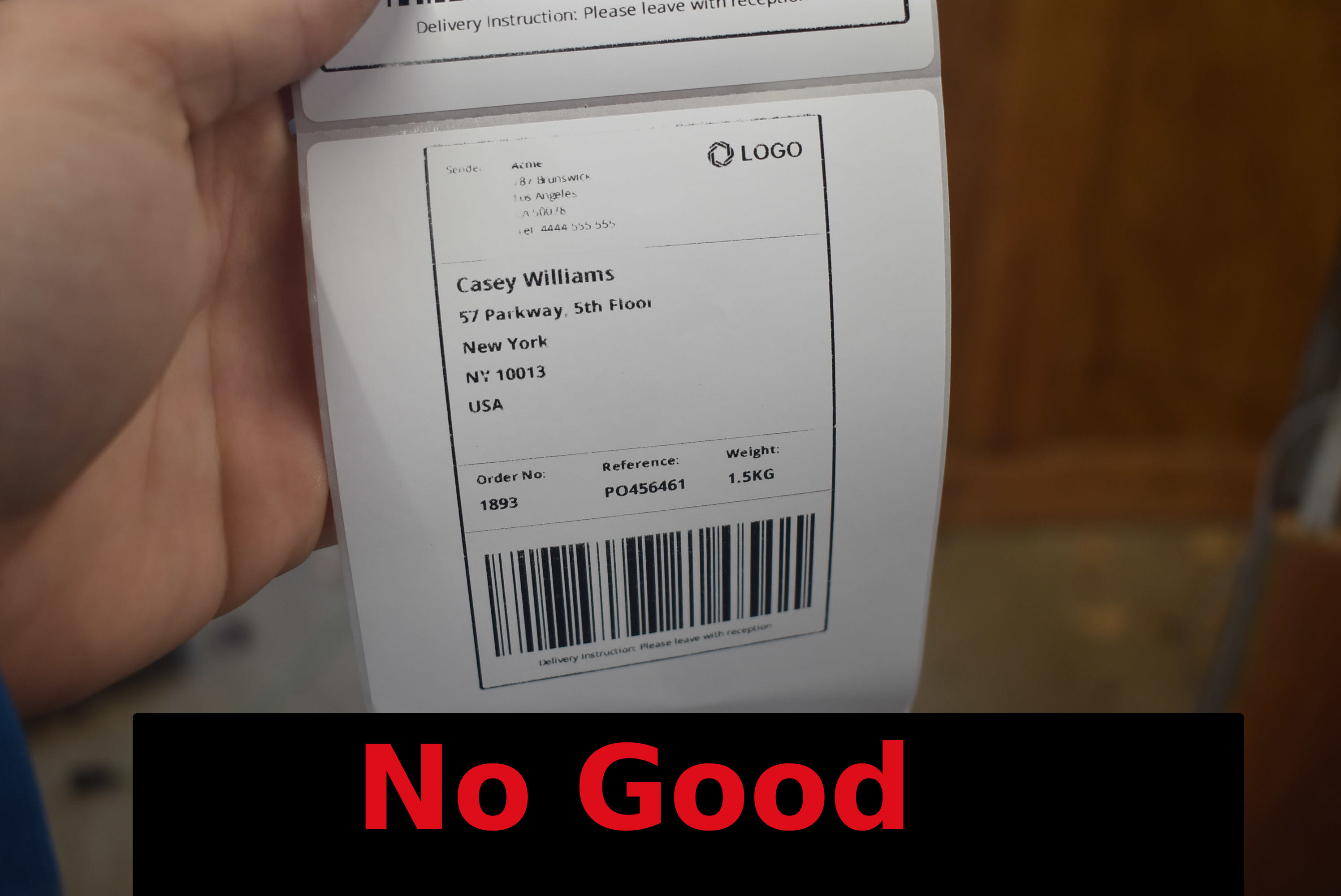
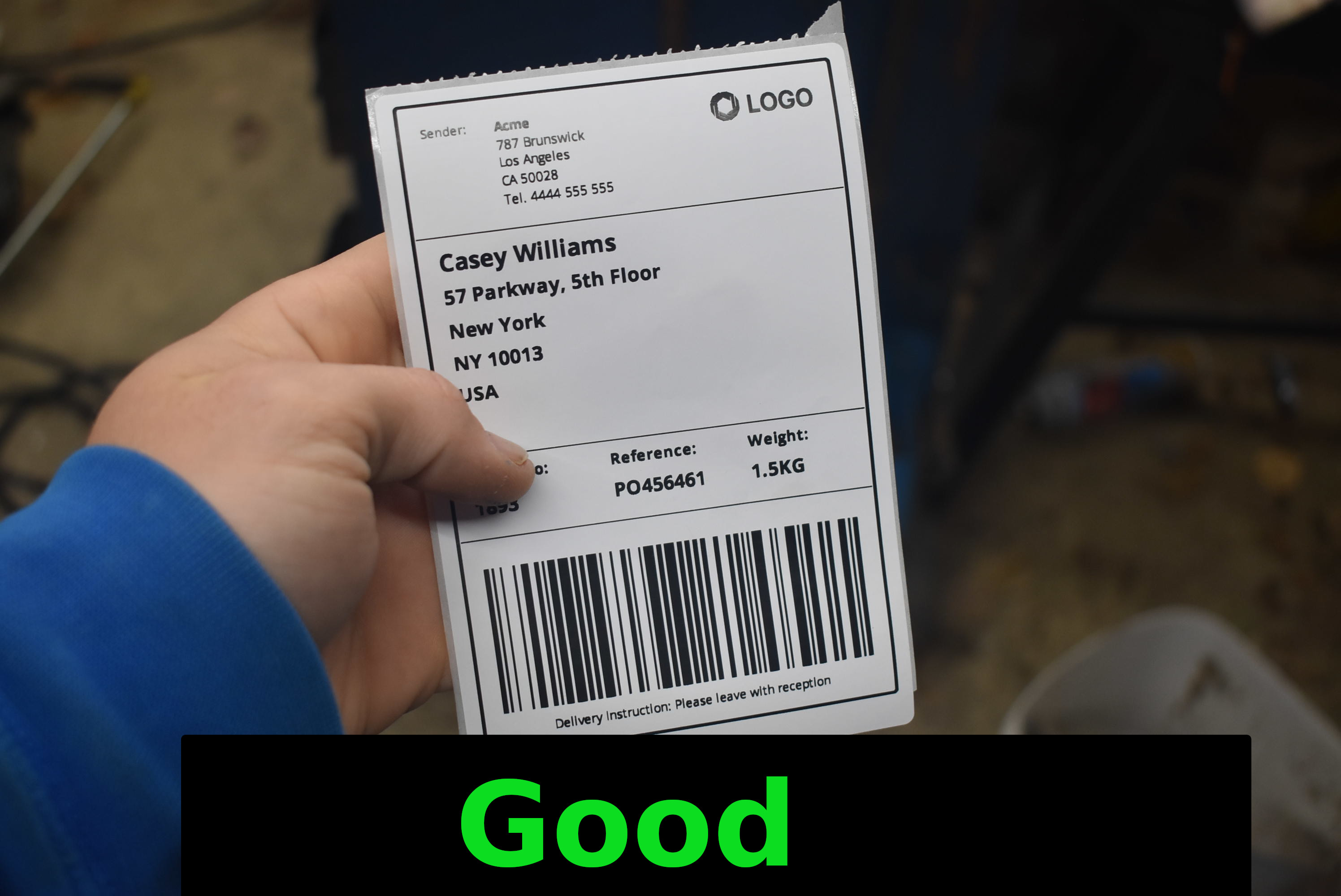
The Zebra ZD420 has to be configured using the correct driver, DPI, and label size. Unfortuanteley, when trying to use the IPP driver there's a DPI mismatch that causes the printer to scale back the label and I cannot figure out how to use it with that driver. The Zebra ZPL driver in CUPS is the correct driver and to use the printer over a network you have to use the right driver and have the correct settings.
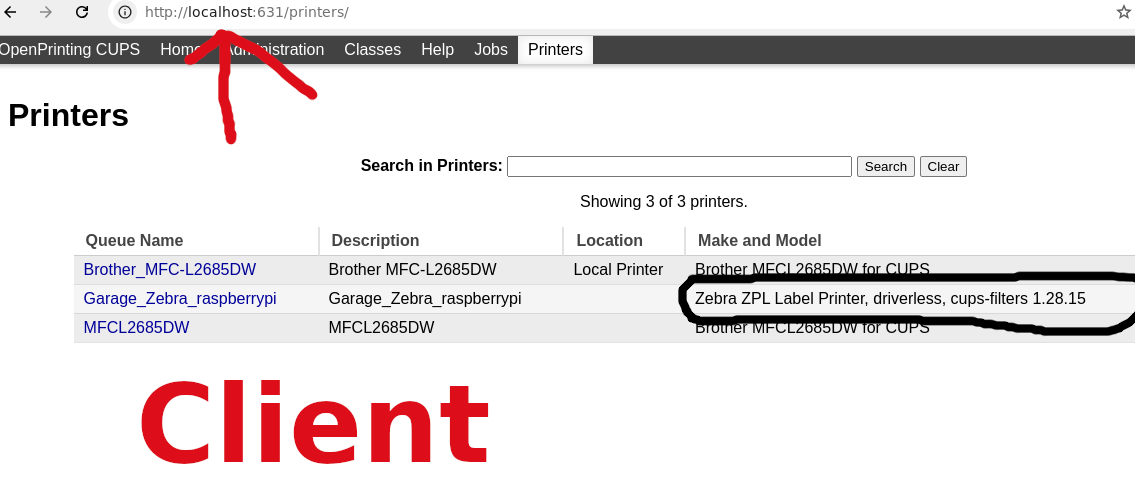
When the client CUPS automatically detects the shared printer the correct driver and settings are automatically inherited from the server [raspberry pi]. It's important to go into the default settings and set the printer to 300 DPI and 4" by 6" print scaling.
In addition to having the correct driver and driver settings the label itself has to be of high quality. Ensure it is 4 inches by 6 inches and I noticed the zebra does not like many formats besides *.PDF. Most plat-forms like eBay provide *.PDF shipping labels directly.
Steps I Used for Correct Printing Over Network
- 1.) Ensure Cups is installed on Raspberry Pi (Server Device) and Zebra ZD420 is plugged in to it via USB port.
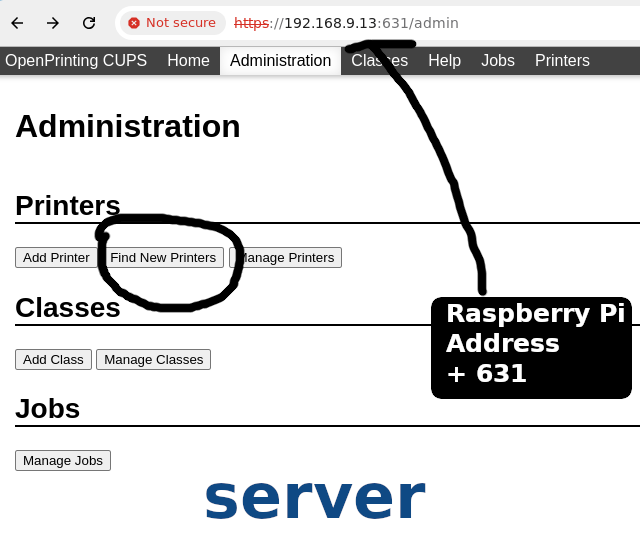
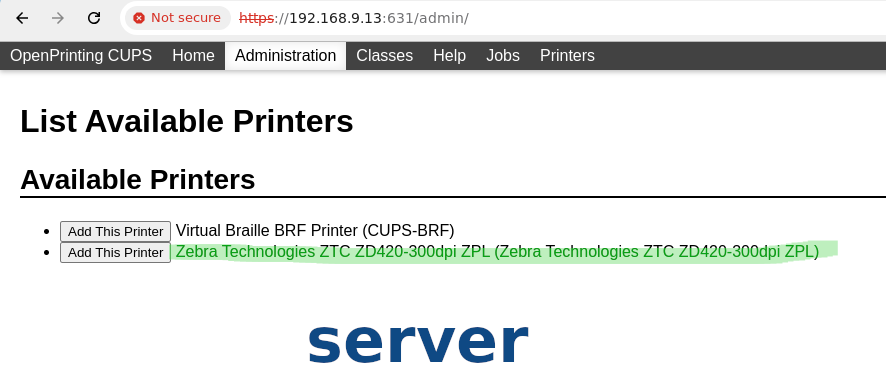
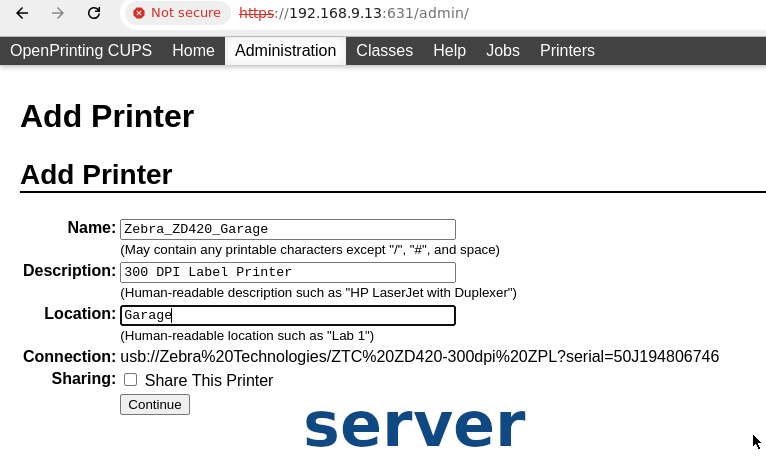
- 2.) Install printer inside of CUPS via the "Find New Printer" button on your Raspberry Pi. To access CUPS web interface, navigate to http://YOUR-PI-IP-ADDRESS:631 within a web browser. From the PI itself you can just go http://localhost:631.
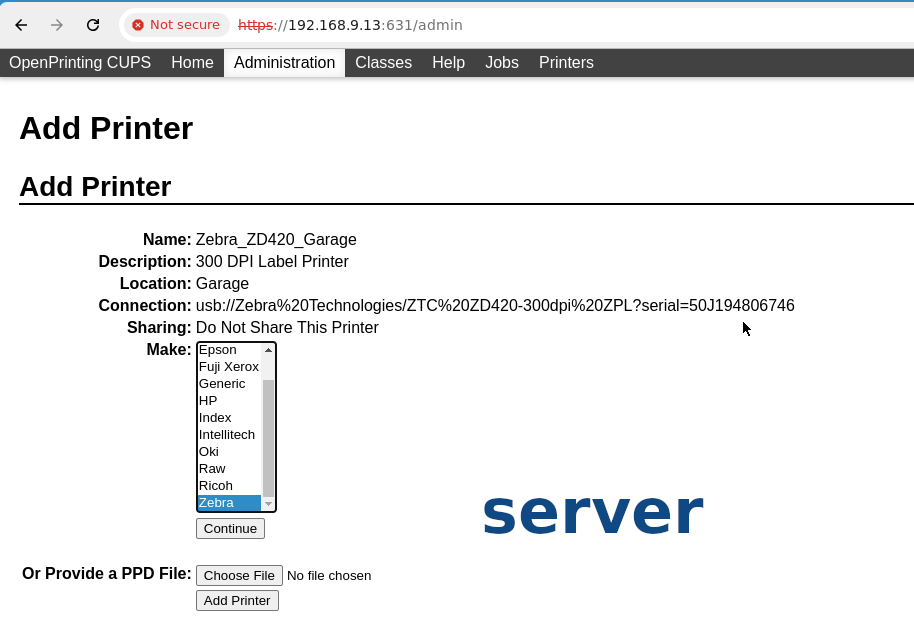
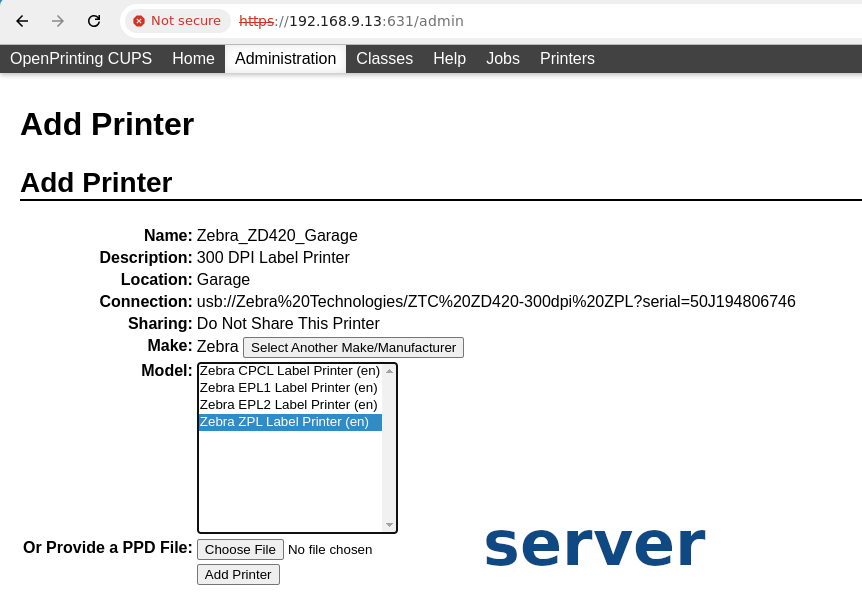
- 3.) Use the command line to share printer.
lpadmin -p Zebra_ZD420_Garage -o printer-is-shared=true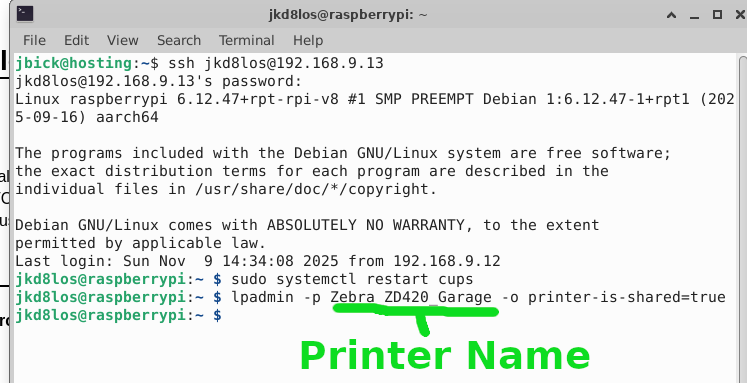
- 4.) Install cups on client machine. If the raspberry pi server is running correctly and cups is installed correctly on client machine, the shared printer should appear automatically on the client machine.
Zebra ZD420 Applications
- Printing labels for selling on eBay.
- Printing return USPS shipping labels.
- Printing receipts or lists.
- Printing tags for my own items.
Network Thermal Printer Setup: Links
The following resources are useful in setting up your printer.
Related ELECTRONICS Posts
-
Pages
Home Page
About BP
Submit Review
Now on The GRR
Listen Now: BetterPart's own Internet Radio station is Hillsdale's Good Rock Radio The GRR!
-
 Better Parts
 -